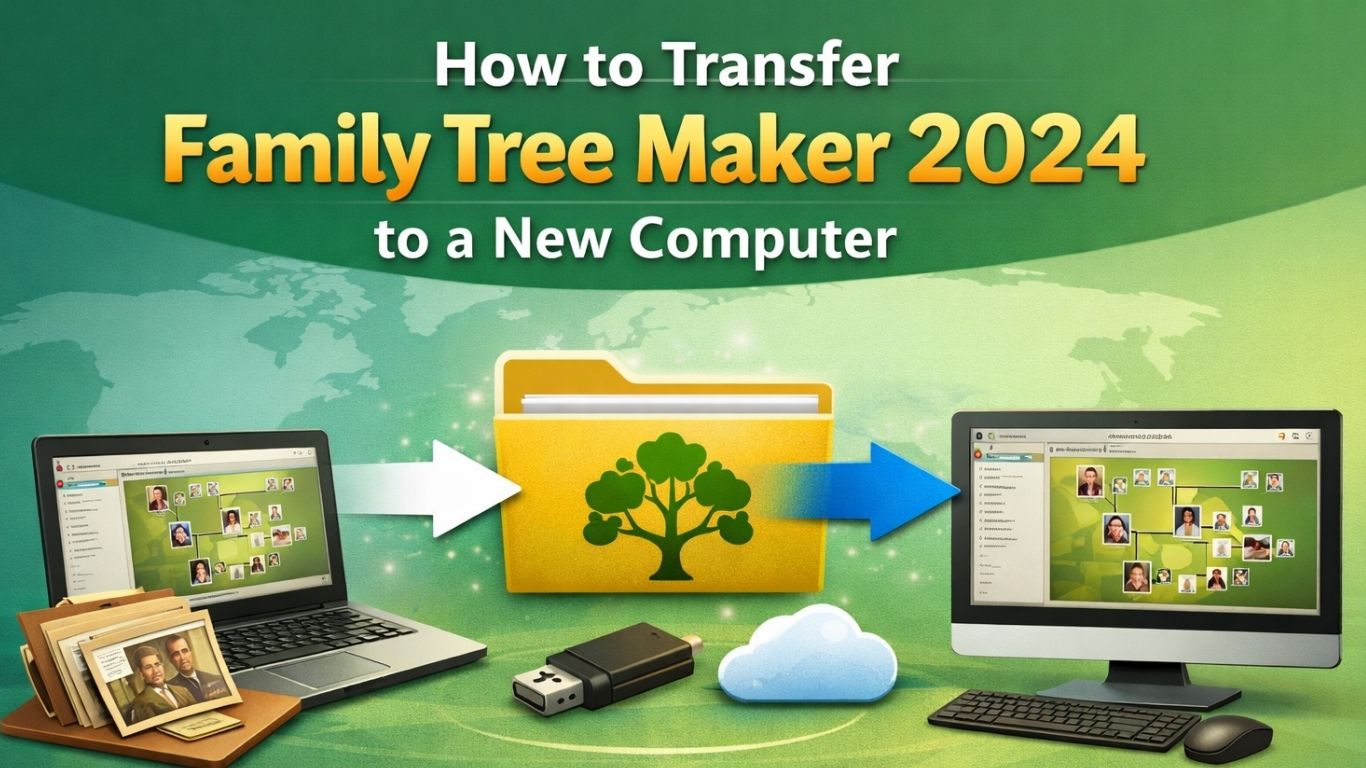
How to Transfer Family Tree Maker 2024 to a New Computer?
Switching to a new computer should feel exciting as it leads to faster performance, more storage, and fewer lags. But if you use Family Tree Maker, that excitement usually comes with one worry sitting in the back of your mind: What if something goes wrong while moving your FTM Source Tree between two computers?
That concern is completely valid.
Most people don’t just store names in Family Tree Maker. They have years of research, old photographs, certificates, notes, and sometimes even work passed down from earlier generations. Losing even a part of that can be frustrating.
The good news is that if you follow the right process, your data will move safely to a new pc. There will be no photos missing, no broken links, and no unpleasant surprises later.
There are many ways people try to move their Family Tree Maker files. Some copy folders manually, while others drag files into a USB and open them on another computer.
That’s where most problems begin.
How to Transfer Family Tree Data
Family Tree Maker is not just one file; it connects multiple elements; these are your tree, media, structure, and internal links. If you move things incorrectly, those connections break.
That’s why experienced users and support teams always recommend one method:
Backup → Move → Restore
It may sound basic, but this method is the safest for a reason.
Before you start installing Family Tree Maker 2024 upgrade on New PC
Start by installing Family Tree Maker 2024 on your new pc. This step is often overlooked, but nothing works without it. Please utilize your original download of family tree maker 2024 or purchase details to complete the setup and ensure the software opens properly.
If your old system has an older version or pending updates, update it before creating the backup. This reduces compatibility issues when restoring.
Now think about how you want to transfer the file. A USB drive works best for most people. It’s simple, direct, and doesn’t depend on internet speed. If you prefer cloud storage like Google Drive, that works too, but only if you are comfortable with it.
Step 1: Create a proper backup
Open Family Tree Maker 2024 on your old computer and seek the backup option under the File menu. This is where you need to be careful. Choose a full backup, not a partial one. Additionally, ensure that media files are included. This is important because your photos and documents won’t transfer otherwise.
Save the backup file somewhere easy to find, like your desktop. At this point, everything you have worked on is now safely packed into one file.
Step 2: Move that backup file
Take that backup file and copy it to a USB drive or external storage. If you are using cloud storage, upload it there.
Once copied, move to your new computer and bring the file over. It’s better to copy it onto your desktop or documents folder rather than opening it directly from USB. That small step avoids unnecessary errors.
Step 3: Restore your tree on the new computer
Now open the Family Tree Maker 2024 Upgrade on your new system. Instead of trying to open the file directly, go to the restore option. Select the backup file you just moved and let the software rebuild your tree.
This step may take a little time, especially if your file is large. Let it complete fully without interruption.
When it finishes, your tree should appear just like it did before.
Take a moment and check everything
Don’t rush away after restoring.
Open a few profiles, click on photos, check documents; and browse through your tree.
Most of the time, everything works perfectly if the backup was done correctly. But it’s always better to confirm now than discover something missing later.
If you are moving your FTM source tree
Some people refer specifically to moving their source tree. In practical terms, the process remains exactly the same. You still create a backup, move it, and restore it.
If your tree was connected to online services, you might need to reconnect or resync after restoring. That’s normal and usually straightforward.
How to do Cloud Transfer
If you don’t want to use a USB drive, cloud services can do the job.
Upload the backup file from your old computer, download it on the new one, and restore it.
The file should be completely downloadable before restoring. Partial downloads can cause issues and the FTM won’t work, leading to potential data loss or corruption during the restoration process.
Mistakes people make while Installing Family Tree Maker 2024 on New PC
One of the most common mistakes is manually copying files instead of using backup. It feels faster, but it often leads to missing images or broken links. Another issue is forgetting to include media during backup. Everything may look fine initially, but photos won’t open later.
Some users also try to restore directly from a USB drive. While it may work sometimes, it’s not reliable. Copying the file first is always safer. Additionally, some people attempt to restore their files without first installing Family Tree Maker on the new computer.
Installing Family Tree Maker 2024 on a new PC
If you have not installed it yet, do that first before anything else.
Download family tree maker 2024, run the installer, enter your activation details, and make sure it launches properly. Only then move on to restoring your tree.
If you are upgrading your software at the same time
Many users take this opportunity to upgrade from an older version. That’s perfectly fine.
Install Family Tree Maker 2024 on your new pc and restore your old backup. The software will handle the conversion automatically.
Just remember that once upgraded, the file may not open in older versions again.
Why some people still prefer help
Sometimes, family tree maker 2024 upgrade and installation doesn’t go as expected. A backup file might not open, photos might not link correctly, or the installation itself may create confusion.
That is the time when people search for help.
What is Family Tree Maker Helps, and why do users rely on it?
Family Tree Maker Helps assists users with FTM 2024 installation, such as transferring trees, error fixation and recovering missing data, if any.
Novices can easily follow the practical guidance. Many users prefer reaching out simply because it saves time. Instead of trying different fixes and hoping something works, they get direct help and move on.
If your data is important, and for most people it is, having that kind of support can be reassuring.
Keep a Second Backup
Here’s something experienced users do. They don’t rely on just one backup. After creating your main backup file, make a second copy and store it somewhere else, maybe another USB drive or cloud storage. It takes less than a minute, but it protects you from situations like file corruption or accidental deletion.
You may never need it, but if something goes wrong, you will be glad you had it.
What Happens If Your Backup File Doesn’t Work?
It doesn’t happen often, but when it does, it can be stressful. Sometimes the backup file doesn’t restore properly. This could be due to an incomplete backup, interruption during transfer, or file corruption.
If that happens, don’t panic immediately. Try opening a different backup if you have one. If not, check whether the file size looks unusually small; that’s often a sign something went wrong during backup.
This is exactly why having a second backup is such a beneficial habit.
How Long Does the Transfer Process Take?
This depends mostly on how large your family tree is. For smaller trees, the entire process can take 10–15 minutes. It might take longer if your tree contains a large number of media files, such as documents and images. Sometimes even 30–40 minutes.
The key is not to interrupt the process midway. Let it finish completely.
When Should You Avoid Doing This Transfer?
Avoid transferring your family tree when your system is updating, you are low on storage, or your computer is running slow or unstable. Transferring in a stable environment reduces chances of failure.
Final thoughts
Moving your FTM source tree between two computers is not complicated, but it does require a bit of care. Don’t try shortcuts; use backup and restore. Take your time, follow the steps, and your family tree will move safely just the way it should.
Frequently Asked Questions
How do I transfer Family Tree Maker 2024 to a new computer?
You create a full backup file, move it to the new computer, and download family tree maker 2024.
Do I need to install Family Tree Maker 2024 on new PC again?
Yes, the software must be installed on the new computer before restoring your data.
Will my photos and documents transfer too?
They will transfer as long as you include media files while creating the backup.
Can I use cloud storage instead of a USB drive?
Yes, both methods work; just ensure the file is fully uploaded and downloaded.
What is the safest way to move my tree?
Using the backup and restore method is the safest and most reliable approach.
Why are my media files missing after transfer?
This usually happens when media was not included in the backup.